

Microsoft 365 is alive and always moving.
New features are rolling out every month, license structures are constantly evolving, and teams pick up tools in different ways.
Even a diligent IT staff can watch small mis-alignments slip through: a policy tweak here, a permissions shortcut there, a license left on the wrong user after a role change. None of those issues break the tenant on their own, yet together they add cost, slow people down, and weaken security.
The seven gaps below are the ones we run into most often when regardless of company size, industry, or the experience of the IT team. Read through them, compare against your own environment, and flag any that feel familiar.
7 Hidden Microsoft 365 Gaps to Look For
1. Licensing Does Not Match Real Work
One of the most common Microsoft 365 issues is simple: people have the wrong licenses for the jobs they actually do.
Some users are assigned higher-cost plans they barely use. Others are missing features they depend on for collaboration, security, compliance, or device management. Over time, license assignments often reflect old assumptions rather than current responsibilities.
This usually happens because licensing decisions are made quickly during onboarding and rarely revisited. Someone leaves, a new person takes over the role, and the same license gets reused without much thought. Teams change, responsibilities shift, and no structured review happens until renewal season creates budget pressure.
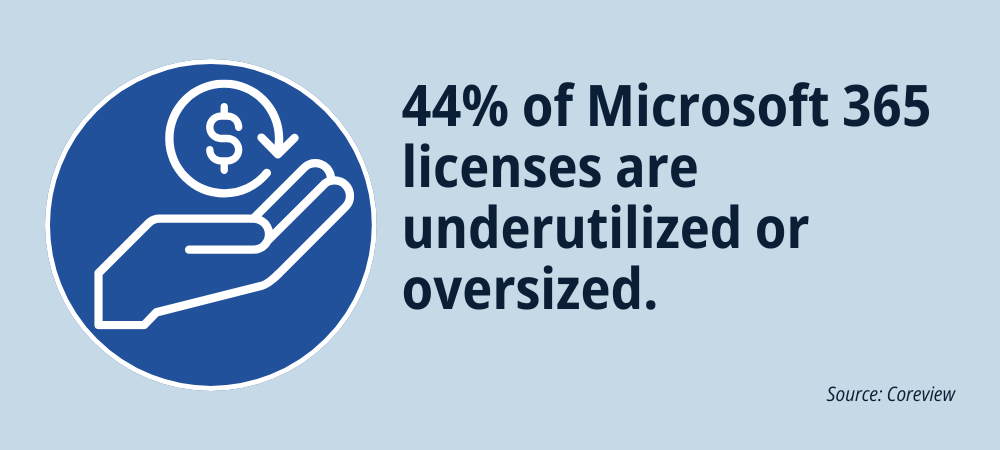
The cost is larger than the license bill alone. IT spends time reacting to upgrade requests, finance struggles to forecast renewal impact, and users work around missing capabilities instead of getting the right tools from the start.
What good looks like:
Licenses are aligned to role-based needs, reviewed regularly, and supported by usage data. Renewal planning is based on real visibility instead of educated guesses.
What to do next:
- Review assigned licenses against actual role requirements.
- Use available reporting to compare assignment patterns with real usage.
- Create standard license profiles for common user groups such as frontline staff, knowledge workers, managers, and executives.
- Add a recurring review cycle before renewal windows and after major organizational changes.
2. Security Fundamentals are Incomplete or Inconsistent
Many organizations believe their Microsoft 365 security foundation is in place simply because the tools are installed.
In reality, the environment often contains gaps between policy and practice.
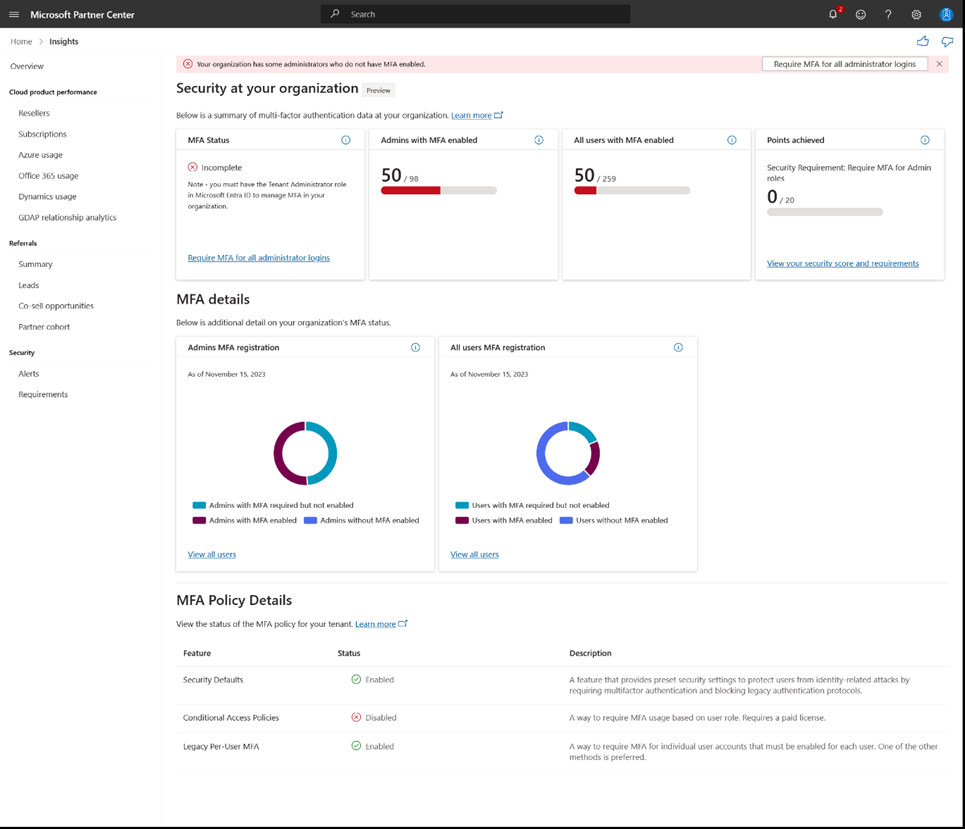
- Multi-factor authentication may be broadly required, but exceptions have accumulated.
- External sharing settings may differ across workloads.
- Older accounts, stale permissions, and legacy habits stay in place longer than anyone intended.
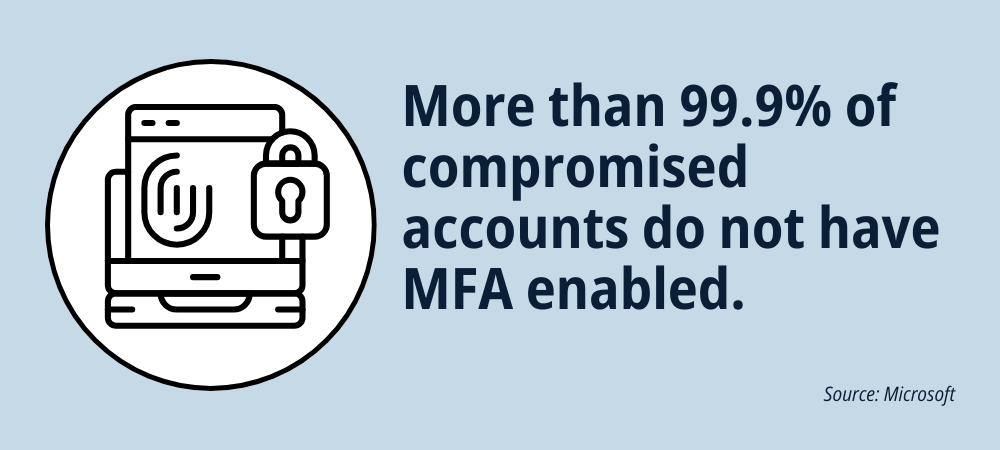
This matters because Microsoft 365 security depends on identity, access, sharing, device posture, and ongoing review. In Microsoft environments today, that usually means looking closely at Microsoft Entra ID, security defaults or Conditional Access, authentication methods, external sharing, guest access, and ownership of security policy changes over time.
The operational impact is real even before a major incident happens. Leadership asks whether access is properly controlled and the answer requires investigation. Former contractors still appear in groups. A link shared months ago still works. These issues compound into serious risk.
What good looks like:
Authentication requirements are applied intentionally, access is reviewed, sharing controls are understood, and security policy ownership is clear.
What to do next:
- Review whether security defaults or Conditional Access policies are doing the work you expect.
- Identify exceptions to MFA and validate whether they are still necessary.
- Review guest access, external sharing, and stale accounts.
- Standardize how access is granted, changed, and removed.
- Set ownership for security governance and periodic review.

3. Teams is Used for Meetings, but Collaboration Still Lives Elsewhere
A lot of organizations say they use Microsoft Teams, but what they really mean is that they use it for meetings and chat. The actual work still lives somewhere else. Files are emailed around as attachments. Teams channels exist, but decisions are not documented there. Staff rely on personal storage, local copies, or side tools because no one has established a clear collaboration model.

A lot of organizations say they use Microsoft Teams, but what they really mean is that they use it for meetings and chat. The actual work still lives somewhere else. Files are emailed around as attachments. Teams channels exist, but decisions are not documented there. Staff rely on personal storage, local copies, or side tools because no one has established a clear collaboration model.
This creates confusion fast. A file is discussed in a Teams meeting, edited later in SharePoint, downloaded by someone else, and then sent back as an attachment. People stop trusting shared locations because they are not sure which version is current.
A Microsoft 365 assessment should look at how Teams, SharePoint, and OneDrive are being used together. That matters because these tools are connected behind the scenes. Channel files are stored in SharePoint. Files shared in private or group chats are typically stored in the sender’s OneDrive. If teams do not understand that relationship, content sprawl and version confusion become much more likely.
What good looks like:
Teams is the collaboration hub for internal work, files live in governed shared locations, and people know where drafts, final documents, and meeting follow-up belong.
What to do next:
- Define clear expectations for when work should happen in Teams versus email.
- Standardize team and channel structure where it makes sense.
- Reinforce the relationship between Teams, SharePoint, and OneDrive so people understand where content lives.
- Reduce attachment-based collaboration in favor of shared files and coauthoring.
- Encourage teams to capture decisions, next steps, and working files in the same workspace.
4. Adoption Has No Ongoing Owner
A Microsoft 365 rollout is often treated like a technical deployment instead of an operational change. The tools are available, but no one is responsible for making sure people understand what to use, when to use it, and how those habits should evolve. As a result, one team collaborates in Teams, another relies on email, and another keeps using a third-party app because that is what they know.
When adoption has no owner, the organization pays twice. First, it pays for Microsoft 365 capabilities that are underused. Then it pays again in duplication, inconsistency, and support friction because people build their own workarounds.
What good looks like:
There is clear ownership for adoption, practical guidance for common workflows, and reinforcement after rollout instead of silence after launch.
What to do next:
- Assign a business or IT owner for Microsoft 365 adoption.
- Identify the handful of workflows that matter most and define how they should happen.
- Give role-based guidance instead of broad generic training.
- Use feedback, usage trends, and recurring check-ins to refine adoption efforts.
- Treat adoption as an ongoing operational responsibility, not a one-time announcement.
5. Email Authentication and Deliverability are Overlooked
Email problems often stay hidden until someone important misses a message. This can often result from departments using different email delivery services without having the proper authentication. Marketing sends from one system, finance sends from another, and automated tools send on behalf of the same domain without a complete record of what has been authorized.
A Microsoft 365 assessment should account for outbound email trust as well as internal collaboration and security. For organizations using custom domains, this usually means checking SPF, DKIM, and DMARC, along with the third-party services that send mail on the organization’s behalf. Microsoft treats these authentication methods as an important part of protecting domains against spoofing and improving message trust.

The business impact can be serious. If messages fail or get sent to spam, trust with customers and partners can erode, support teams spin cycles by chasing delivery issues, and the organization’s domain becomes easier to impersonate (hello phishing scams!)
What good looks like:
All legitimate senders are known, email authentication is configured intentionally, and the organization has better visibility into how mail is being sent and validated.
What to do next:
- Identify every system that sends email using your domain.
- Review SPF, DKIM, and DMARC configuration for custom domains.
- Confirm that third-party platforms are properly aligned with your domain setup.
- Monitor delivery issues and investigate recurring spam placement.
- Revisit email authentication when new systems are introduced.
6. Copilot Readiness is Assumed Instead of Verified
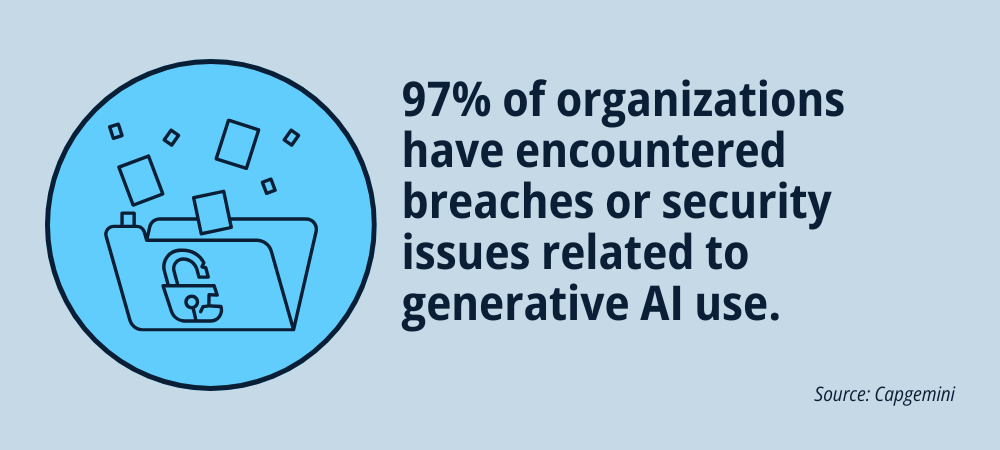
Organizations are under real pressure to move faster on AI. The problem is that many Microsoft 365 environments are not ready for Copilot just because the licenses are available. Copilot works within existing permissions and access controls. That means it can surface content people already have access to, including content that may be overshared, poorly governed, outdated, duplicated, or ownerless.
This is why Copilot readiness is largely a data governance and permissions conversation before it is an AI rollout conversation. If SharePoint sites are loosely managed, access is too broad, stale content is everywhere, or no one owns information architecture, Copilot can magnify those weaknesses instead of masking them. These can ultimately lead to new cyber threats, such as prompt injection attacks and copyright violations.
What good looks like:
Content is better organized, ownership is clearer, permissions are more intentional, and oversharing risks are being addressed before broad AI enablement.
What to do next:
- Review permissions on high-value SharePoint sites and Teams-connected content.
- Identify inactive, ownerless, or overshared sites.
- Clean up duplicate and outdated files where practical.
- Clarify data ownership for key departments and workspaces.
- Make Copilot readiness part of your governance and security planning, not a separate track.
7. Microsoft 365 is Managed as Separate Tools Instead of One Platform
When Teams, SharePoint, OneDrive, Outlook, Entra ID, and related services are managed in isolation, the user experience becomes fragmented. Different teams solve the same problem in different ways. Documents move across tools without a clear operating model. Security and governance decisions are made workload by workload instead of as part of a connected environment.
This is where organizations start paying for overlap. External tools remain in place because internal processes were never mapped clearly. Users switch back and forth between systems because no one has defined how the Microsoft 365 platform is supposed to work together.
What good looks like:
Microsoft 365 is treated as a connected operating environment with clear roles for each workload, shared governance standards, and workflows that make sense to the people using them.
What to do next:
- Clarify the role of key workloads such as Teams, SharePoint, OneDrive, Outlook, and Entra ID in daily work.
- Map common workflows from creation through collaboration, approval, and retention.
- Look for duplicate tools or disconnected habits that add cost and confusion.
- Standardize where structure matters most, while leaving room for reasonable flexibility.
- Use the assessment process to turn fragmented decisions into a more coherent operating model.
What is a Microsoft 365 Assessment?
A Microsoft 365 Assessment is a structured review of your tenant, configurations, usage patterns, and day-to-day workflows. It helps you identify where licensing, security, collaboration, governance, and adoption are working as intended and where gaps are quietly creating cost, friction, or risk.
For many organizations, Microsoft 365 was installed piece-by-piece and, inevitably, it grew over time. This often manifests in new users being added quickly with identical permissions across the org, Teams channels being created on the fly with no governance standards in place, security controls left in default settings. On top of that, different departments and users have a wide variety of standards and processes for how to engage with their Microsoft 365 tools.
An assessment gives you a clearer view of what your environment looks like today and what needs attention next.
What a Microsoft 365 Assessment can Uncover in Your Environment
Using Microsoft 365 every day does not mean your environment is healthy, well-governed, or cost-effective. Many of the most expensive issues do not show up as major outages. They show up as smaller problems that repeat over and over.
- Licenses are assigned based on habit instead of role.
- Teams is used for meetings, but collaboration still happens through email attachments and side tools.
- Security controls are partly enabled, inconsistently applied, or no longer aligned with how people work.
- Permissions have expanded over time, making Copilot readiness and data governance harder to manage.
- No one has a current, shared picture of how the environment is actually configured.
A strong Microsoft 365 assessment helps you turn those scattered issues into a clear set of findings, priorities, and next steps.
What a Microsoft 365 Assessment Should Include
A well-run assessment should go beyond a surface-level settings review. It should connect tenant configuration to real work, real risk, and real decision-making. Depending on the organization, the scope may include:
- Licensing alignment and renewal planning
- Identity, authentication, and access controls
- External sharing, guest access, and permissions hygiene
- Teams, SharePoint, and OneDrive usage patterns
- Email authentication and deliverability considerations
- Governance, ownership, and content lifecycle issues
- Copilot and AI readiness tied to permissions and data quality
- A prioritized roadmap with quick wins and longer-term recommendations
When to Consider a Microsoft 365 Assessment
A Microsoft 365 assessment is especially useful before a renewal, before a Copilot rollout, after fast growth or organizational change, after mergers or acquisitions, after leadership or admin turnover, or when teams are voicing the same frustrations repeatedly. If the environment has been evolving for years without a formal review, there is a good chance hidden gaps have already taken root.
What Happens After the Microsoft 365 Assessment
The most valuable outcome is not a long report that sits on a shelf. It is a clear picture of where the environment stands now, which findings matter most, and what actions should happen first. That usually means separating quick wins from bigger operational decisions, identifying owners, and creating a roadmap the organization can realistically follow.
Is Your Microsoft 365 Environment Ready for What Comes Next?
Security expectations are rising, collaboration is more complex, and AI is increasing the value of getting permissions, governance, and content structure right. If your foundation is unclear, every new initiative becomes harder than it needs to be.
If your organization wants a clearer view of licensing, security, collaboration, governance, and Copilot readiness, the first step is understanding the environment you already have.
A Microsoft 365 assessment helps you understand where the friction is, where the risk is, and where better structure can create immediate value.